

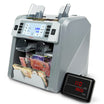
7710 R
Mixed Bill Counter
7710 R
7710R Firmware Upgrade
Cassida has released a firmware update for specific 7710R units. The update resolves an identified software issue affecting certain units.
Not all 7710R units are affected. Please follow the steps below to determine whether your unit requires an update.
Step 1 — Check Your Serial Number
Your 7710R may require a firmware update if its Serial Number falls within one of the following ranges:
1062108821R56650 – 1062108821R56699
1062308821R56650 – 1062308821R56669
1062308821R56670 – 1062308821R56749
If your Serial Number does not fall within one of these ranges, no action is required.
If your Serial Number is within one of these ranges, continue to Step 2.
Step 2 — Check Your Firmware Version
On your 7710R, open the About screen and locate the Version and Main information.
Update Required
If your unit shows:
Version: CAS7710RMOS_250224
Main: CAS7710R_20250711a
Your unit is running the affected firmware version and should be updated.
No Update Required
If your unit has a firmware version different from the one mentioned above, no action is required.
Step 3 — Update Your 7710R
The updated firmware that resolves the issue is:
Version: CAS7710RMOS_260612
Main: CAS7710R_20260130a
If your unit has the affected Serial Number and affected firmware version listed above, please download and install the latest firmware.
[Download 7710R Firmware Update]
Updating the 7710R Bill Counter
- 1. Download the update
Download the latest update by clicking the link above. - 2. Prepare your USB drive
Create a folder named "GIN" on your USB drive. (Make sure your USB drive is formatted as FAT32 - if it isn't, follow this procedure.) - 3. Add the update file
Place the update file inside the "GIN" folder on the USB drive. - 4: Connect to the 7710R
Plug the USB drive into the USB port on the 7710R. - 5: Start the installation
Turn on the 7710R bill counter. The software installation will begin automatically. - 6: Confirm success
Installation is complete once the screen displays:
"5. System Upgrade Success"
"6. gl18 waiting"
(See linked pictures below for visual reference.)
Need Assistance?
If you're unsure whether your 7710R requires the update or need assistance installing the firmware, please contact Cassida Technical Support. Our team will be happy to assist you.


